

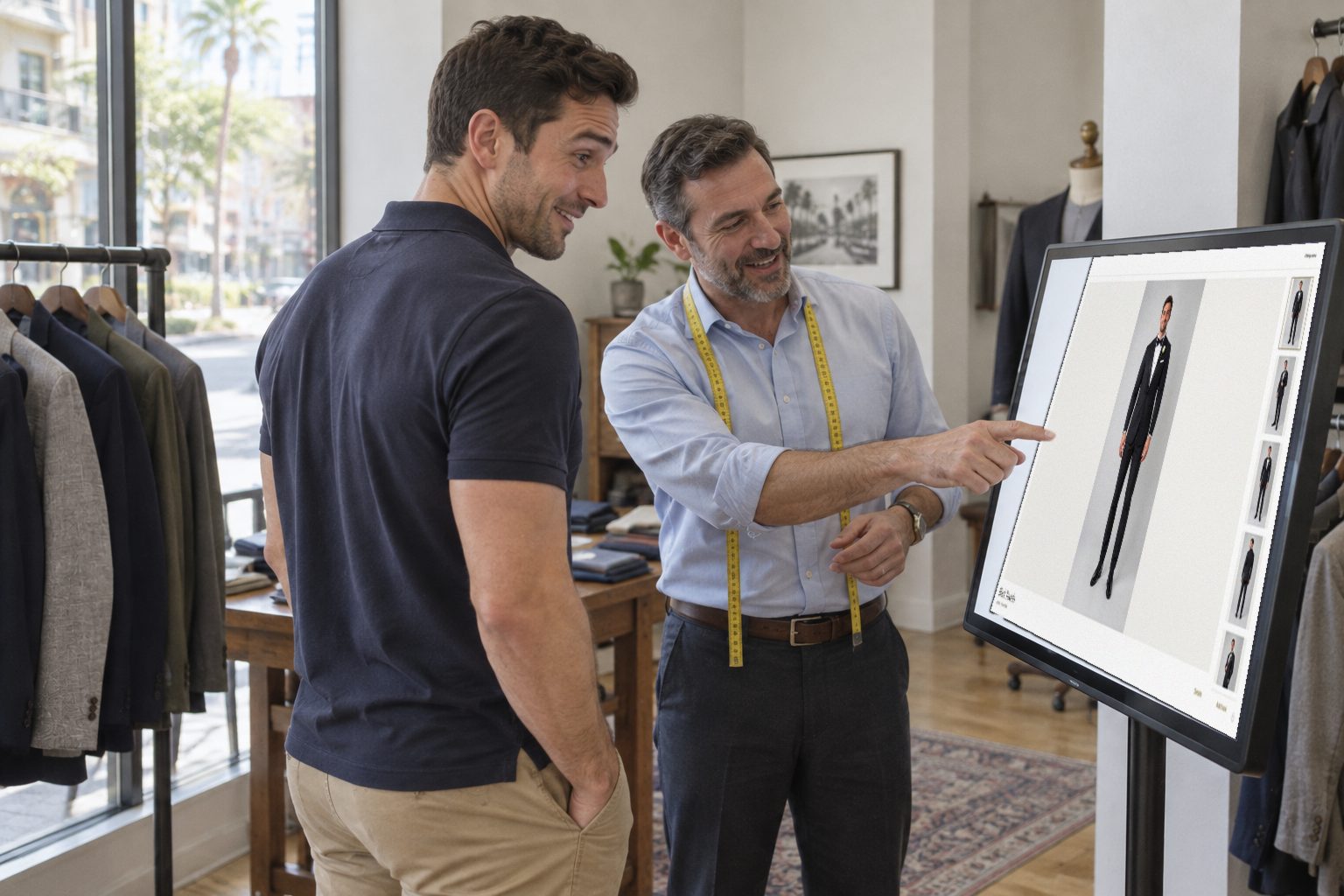
Jordan comes in for his wedding tuxedo. Your screen shows a QR code, he sends one photo from his own phone, and minutes later he is looking at himself in the tux — then leaves with the lookbook on his phone. The whole in-store fitting, step by step.
Jordan is thirty, lives in Orlando and is getting married in the spring. He comes into the shop for his tuxedo appointment in a polo and chinos, and like most grooms he cannot picture himself in black tie.
You do not need to photograph him or install anything on his phone. Your shop screen shows a QR code, he scans it and sends one photo, and the two of you choose his tuxedo together on the big screen. Before he leaves, the lookbook is on his phone. This is the whole appointment, step by step.
Before He Arrives: In-Store Mode
Put the studio on the screen your clients will use — a tablet on the counter or a big display by the mirror — and switch on in-store mode with a 4-digit PIN. The dashboard and settings disappear and the screen greets clients with A suit, seen on you. Leaving in-store mode takes the PIN, and if a client walks away, the screen returns to this welcome page on its own after a few minutes.
Step 1: One QR Code
When Jordan sits down, tap Generate QR Code. The screen shows a private code for this fitting under Begin on your phone. Each code is for one client; New QR code replaces it and Cancel fitting clears it.
Steps 2–3: He Scans It and Sends One Photo
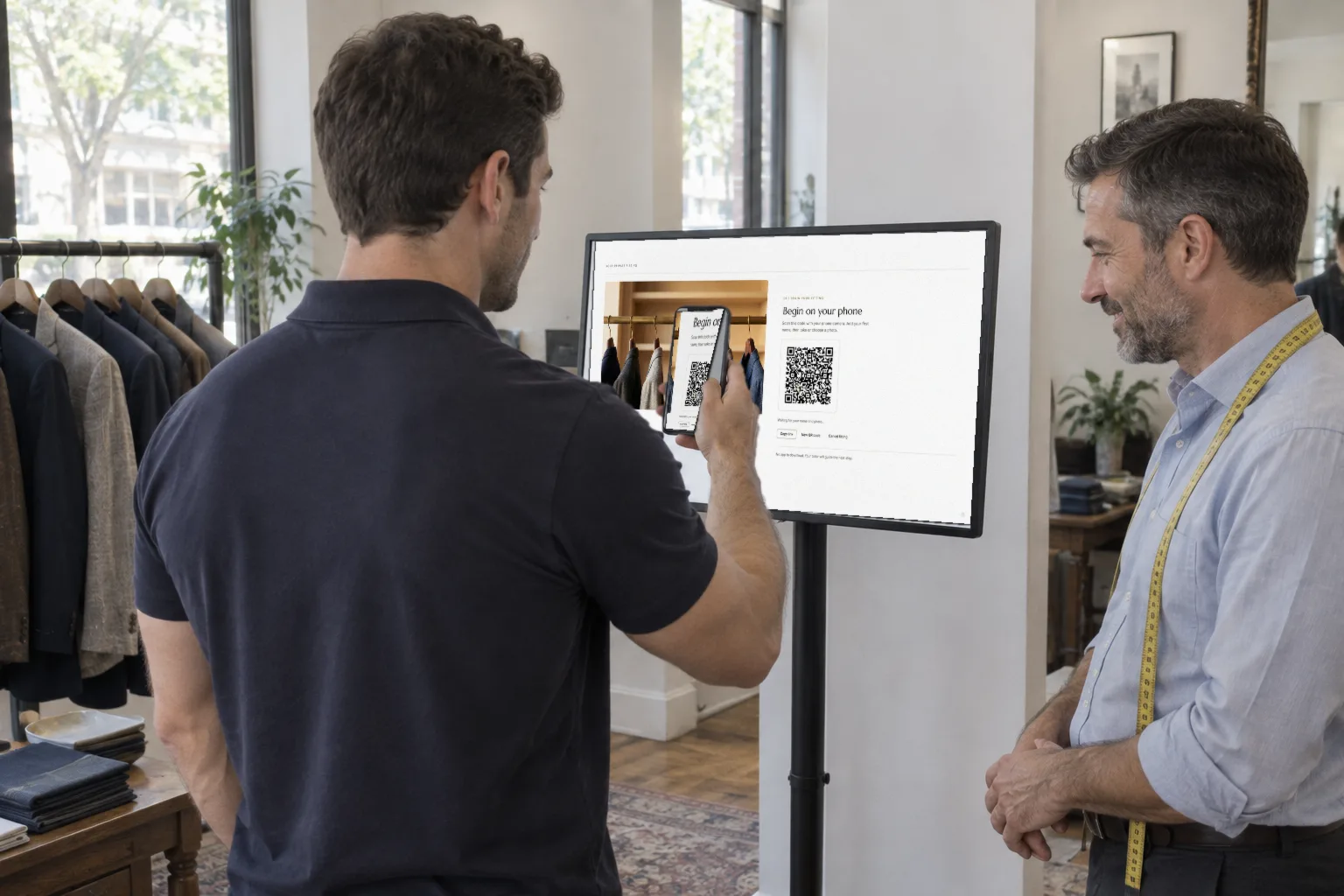
Jordan points his phone camera at the code. A page opens in his browser — no app, no account — that says Let’s start with you. He types his first name, then Take photo or Choose photo: a full-length picture, head to shoes, facing the camera, works best. He taps Send photo and his phone says You’re all set.
The photo only tells Sartorly who he is: his face, skin, hair and build. Whatever else is in the picture is left behind.
Step 4: "Welcome, Jordan."
You do not touch anything: as soon as his photo arrives, the shop screen shows it with Welcome, Jordan. Now the two of you choose together. Tap Choose a style.
Steps 5–6: Choose the Outfit, See Him in It
Choose an outfit shows your collection under your shop’s name: complete outfits photographed head to toe. For a wedding there are black-tie outfits — a black tuxedo, a midnight blue tuxedo, a double-breasted tuxedo, a white dinner jacket. Jordan wanted the classic: the Black Tuxedo. Tap Try this look.
The first look costs one credit and usually takes under a minute. Sartorly reads his build from the photo — shoulders, chest, midsection — and cuts the outfit to it, so the jacket follows Jordan’s athletic frame, not the model’s.
Steps 7–8: Try an Idea, Then the Finishing Touch
Type any change under Describe a change and tap Apply: a different cloth, other shoes, an accessory. Each change costs one credit and becomes a new entry in the Version history; going back to an earlier one is free.
Jordan’s wedding is outdoors in Florida, so he wanted to see a white dinner jacket. He preferred the black, so one tap took him back. Then the groom’s detail: "Add a white rose boutonnière to the lapel". Every change is drawn again from his original photo, so his face does not drift.
Step 9: Fourteen Poses
Open showroom turns the look into fourteen pictures: the look you made, then 13 new ones — a cover shot, full front and back, turns to each side, a hand at the bow tie, the cuff and cufflink, the rose, seated, relaxed and walking. Each new pose is one credit. They run by themselves, so this is the moment to measure him.
Steps 10–11: His Lookbook, on His Phone
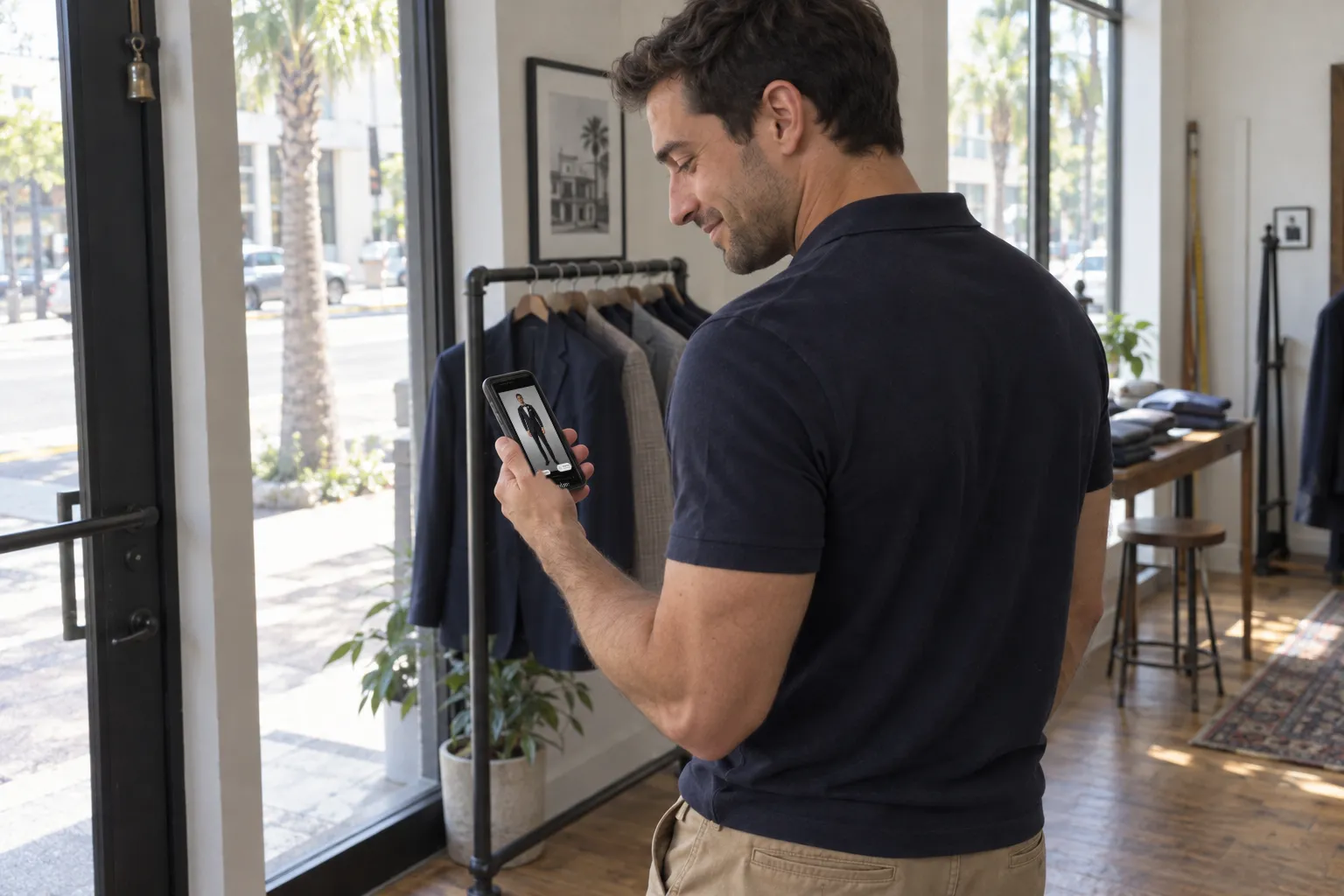
Pick a layout — Editorial, Classic, Stroll, Masthead, Dolce Vita or Noir — and give it a title: Jordan’s reads "Jordan: The Wedding". Send to Client adds your name and a personal note, protects it with a password if you like, and sends it by email or as a link. He opens it on his phone before he is out of the door: no app, no account.
Steps 12–13: He Writes, You Reply
That evening Jordan taps the heart on the looks he loves and writes to you from the lookbook with Leave feedback. His message lands in your Inbox with an unread badge. Reply there and it appears on his phone, in the same conversation.
How Long It Takes
| Step | Your time | Credits |
|---|---|---|
| QR code, his name and photo | About a minute | 0 |
| First look | Under a minute of waiting | 1 |
| A change or two | A minute or two | 1 each |
| Fourteen poses | A few minutes, running on their own | 13 |
| Layout and send | A couple of minutes | 0 |
New accounts start with 20 free credits, enough for one full lookbook and a few changes.
The point is not the software. It is that he leaves the appointment with the tuxedo already in his pocket, and everyone he shows it to sees him in it.